Connect to OpenRouter using an API key.
Create or log in to OpenRouter at https://openrouter.ai/ by clicking Sign In. If you have not yet registered, there is a Sign-Up option on that sign-in page. You can use a one-click sign-in using your Google account.
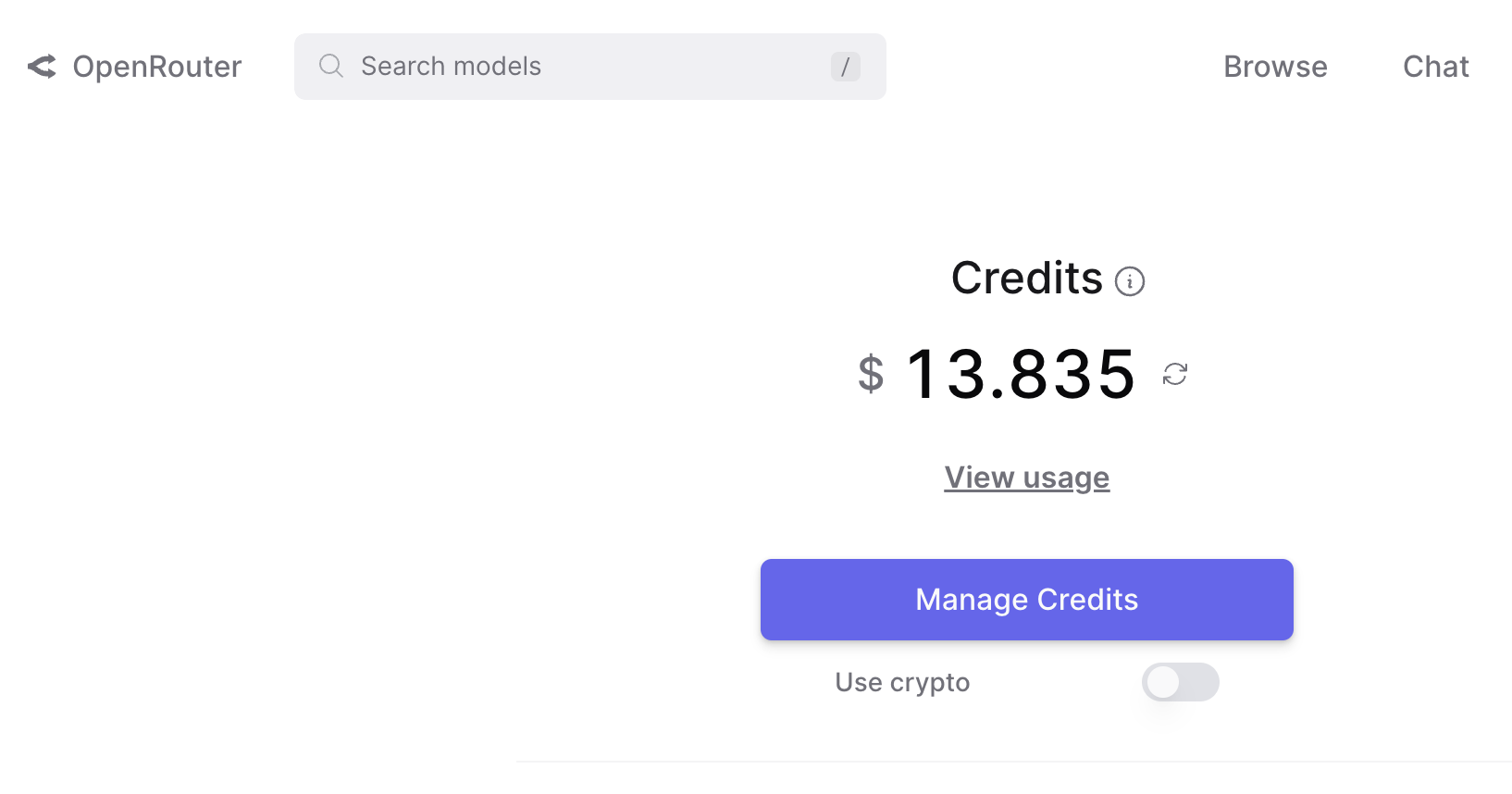
Navigate to https://openrouter.ai/credits, then click Manage Billing to add credits. Important: The remaining credit in your account determines the number of requests you can make per second. For example, 0 credits → 1 req/s (minimum), $5 credits → 5 req/s, $10 credits → 10 req/s, with a maximum of 200 req/s. If you don't add credit, you need to use a model with a name ending in ":free."
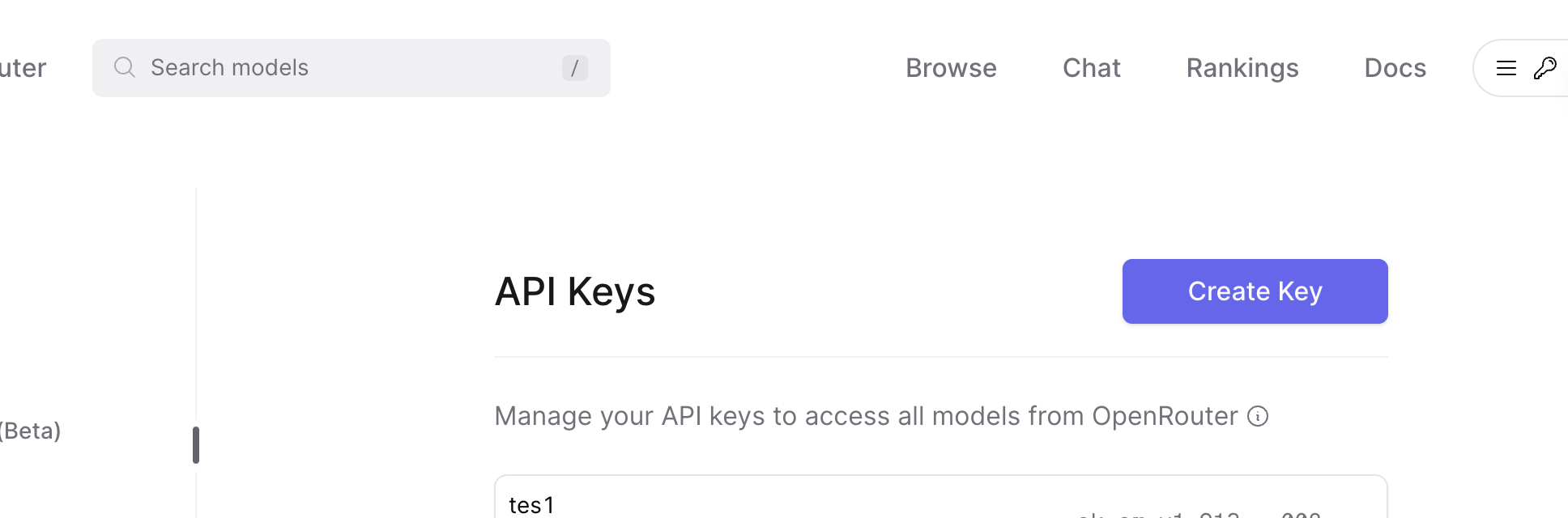
Navigate to https://openrouter.ai/settings/keys, then click Create Key.
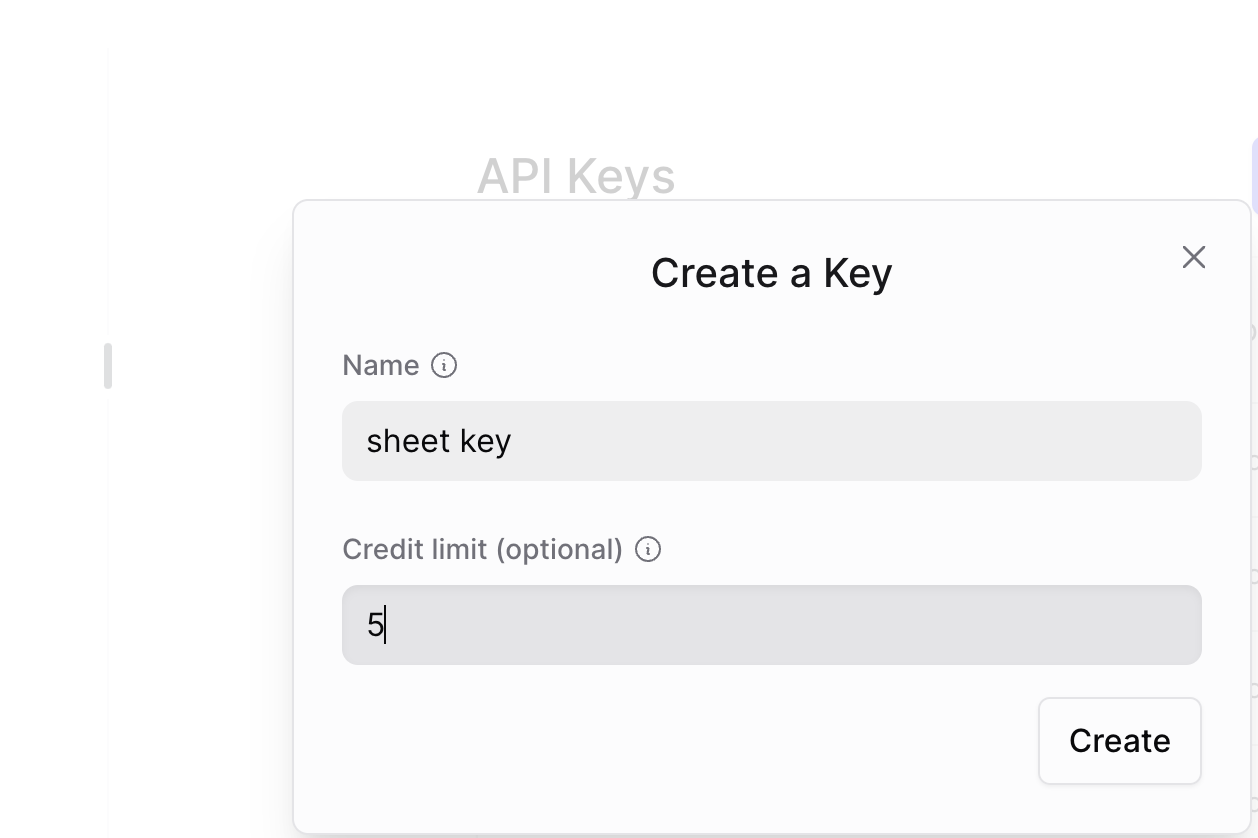
Write a descriptive name and set a credit limit. We recommend starting with a small amount, which you can change later to prevent unexpected usage limits. After that, click Create.
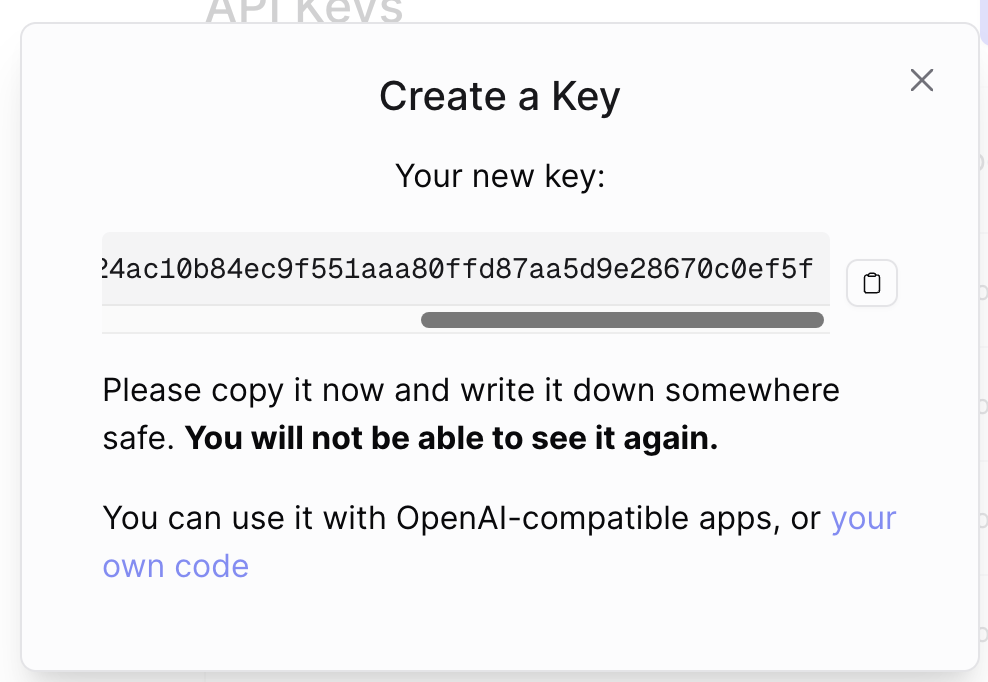
Click copy on the generated key. Important: Keep your API Key private. Please do not share it to avoid unauthorized use.
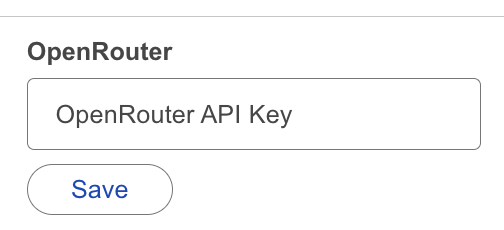
On the Add-Ons, go to Settings → API Key Settings. Paste the value, then click Save.
Need more help? Browse the Connect to AI Provider (using API key) category or contact our support team.
Once your API key is ready, plug it into AiAssistWorks to run 100+ AI models directly inside Google Sheets, Docs & Slides.
Use Your API Key Now